Learn MapScrapX
Everything you need to go from zero to dominating local search — lead scraping, email outreach, CRM management, SEO audits, and more.
🚀 Getting Started
Set up your MapScrapX account in under 5 minutes and start generating local leads immediately.
Create Your Account
Visit mapscrapx.com and click "Get Started Free". Sign up using your Google account for instant access — no credit card required.
Explore the Dashboard
After signing in, you'll land on the main dashboard. The left sidebar contains all 40+ tools organized by category. Your subscription status and remaining credits are displayed at the top.
Install the Chrome Extension
Download and install the MapScrapX Chrome Extension to unlock lead scraping from Google Maps directly in your browser. See the Chrome Extension Guide for detailed instructions.
Scrape Your First Leads
Navigate to the Scraper Dashboard, enter your target keyword (e.g., "plumber") and location (e.g., "Los Angeles, CA"), then hit Start Scraping. Leads will populate in real-time.
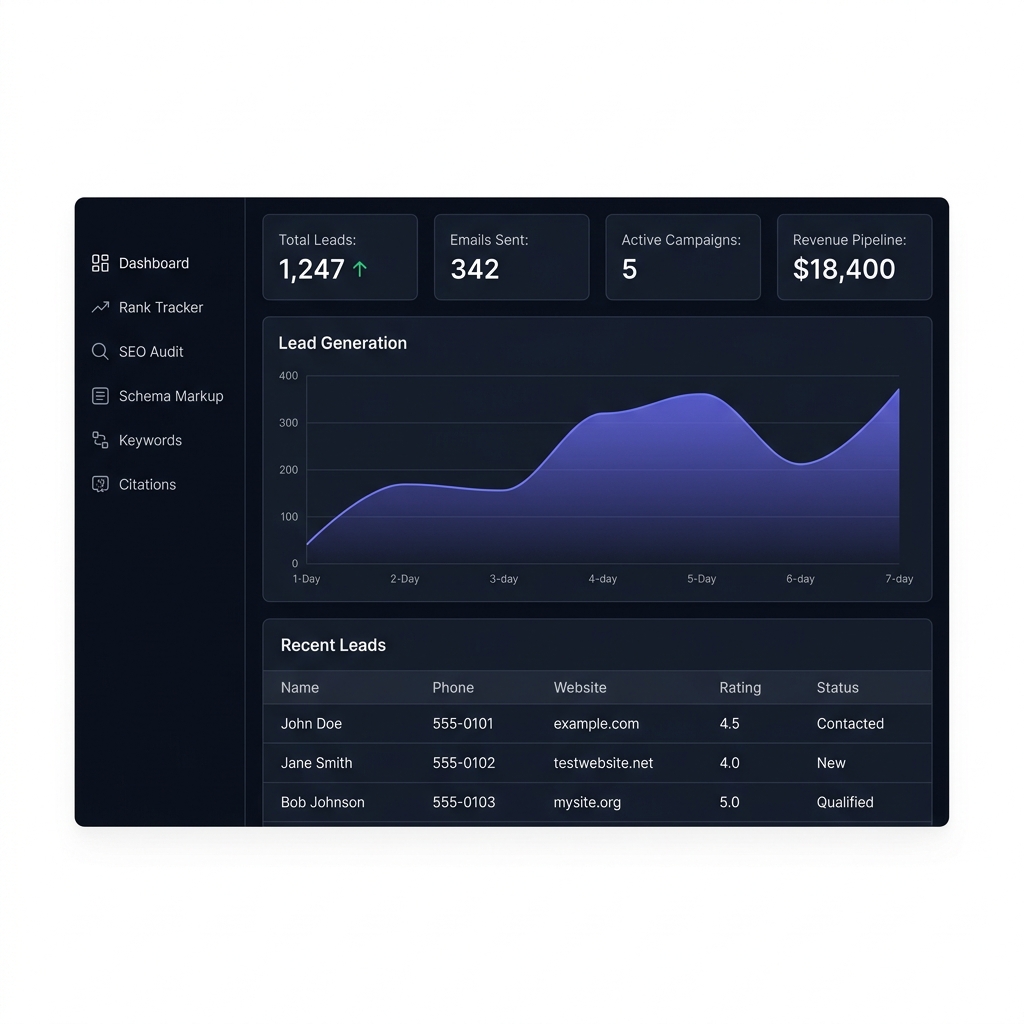
Understanding the Sidebar
The sidebar organizes tools into logical groups. Click any tool name to open it in the main content area. Tools marked with a PRO badge require a premium subscription. Tools with a LIVE badge connect to real-time data sources.
🔍 Lead Scraping (Google Maps)
Scrape targeted local business leads from Google Maps at scale. Export to CSV/XLSX or feed directly into your CRM pipeline.
How the Scraper Works
The MapScrapX scraper uses the Chrome Extension to navigate Google Maps search results in your browser. It extracts business name, phone, email, website, address, rating, and review count from each listing.
Open the Scraper Dashboard
From the main sidebar, click "Geo-Grid Heatmap" or navigate to the Scraper tab. The scraper dashboard will open with input fields for your search parameters.
Enter Search Parameters
Type your target keyword (e.g., dentist, roofing contractor) and location (e.g., Miami, FL). Set the maximum number of results you want to scrape.
Adjust Scroll Delays
The Scroll Delay controls how fast the scraper scrolls through results. Higher delays (2000ms–3000ms) are safer and reduce the risk of detection. Lower delays (500ms–1000ms) are faster but may trigger captchas.
Enable Safe Mode (Recommended)
Toggle Safe Mode to add randomized delays and human-like scrolling behavior. This significantly reduces the chance of Google showing captchas or rate-limiting your session.
Start Scraping & Export
Click "Start Scraping" and watch leads populate in real-time. Once complete, export your results as CSV or XLSX using the export buttons, or push them directly to your CRM pipeline.
Exported Data Fields
| Field | Description | Example |
|---|---|---|
| Business Name | Name as listed on Google Maps | Joe's Plumbing Co. |
| Phone | Primary contact number | (305) 555-0142 |
| Website | Business website URL | joesplumbing.com |
| Address | Full street address | 123 Main St, Miami FL |
| Rating | Google Maps star rating | 4.7 |
| Reviews | Total review count | 128 |
| Category | Google Business category | Plumber |
📧 SMTP Setup & Configuration
Configure your email settings to send outreach messages directly from the MapScrapX dashboard.
Accessing SMTP Settings
Click the "API Keys" button (🔑) in the top-right corner of your dashboard. This opens the settings panel where you can configure your SMTP credentials.
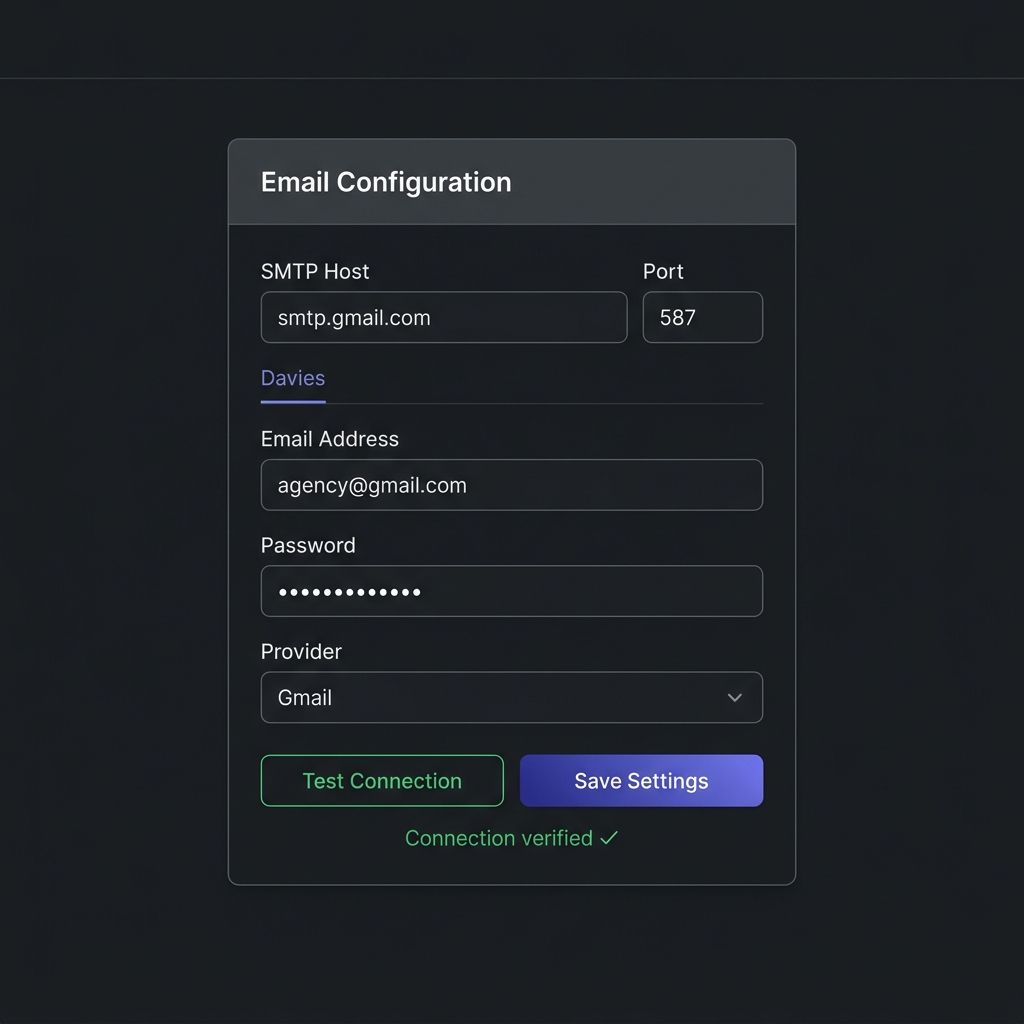
Configuration Fields
Supported Email Providers
| Provider | SMTP Host | Port | Notes |
|---|---|---|---|
| Gmail | smtp.gmail.com | 587 | Requires App Password |
| Outlook / Hotmail | smtp.office365.com | 587 | Use your full email as username |
| Yahoo Mail | smtp.mail.yahoo.com | 587 | Enable "Allow less secure apps" |
| Custom SMTP | Your provider's host | Varies | Contact your email host for details |
Gmail App Password Setup
Enable 2-Step Verification
Go to myaccount.google.com/security and enable 2-Step Verification if not already active. App Passwords require 2FA to be enabled.
Generate App Password
Visit myaccount.google.com/apppasswords. Select "Mail" as the app and "Other" as the device (name it "MapScrapX"). Click Generate.
Copy & Paste into MapScrapX
Google will show a 16-character password (e.g., abcd efgh ijkl mnop). Copy this entire string and paste it into the Password field in your MapScrapX SMTP settings. Remove any spaces.
✉️ Outreach & Email Pitching
Turn scraped leads into clients by sending professional outreach emails directly from MapScrapX.
Finding High-Value Leads
The best outreach targets are businesses that need your services. Use these built-in tools to identify high-value prospects:
Missing Website Scraper
Find businesses on Google Maps that have no website listed — perfect candidates for web design services.
Unclaimed GBP Scraper
Discover businesses with unclaimed Google Business Profiles. Offer to claim and optimize their listing.
Low Rating Filter
Filter scraped leads by rating (below 4.0 stars). These businesses urgently need reputation management.
Few Reviews Finder
Target businesses with under 10 reviews. They're most likely to benefit from a review generation strategy.
Sending Outreach Emails
Select Your Leads
From your scraped results or CRM pipeline, select the leads you want to contact. You can select individual leads or use bulk-select to choose all filtered results.
Choose or Write a Template
MapScrapX includes built-in email templates for common pitch scenarios (web design, SEO audit, GBP optimization). You can customize these or write your own from scratch.
Review & Send
Preview how your email will look, then send it. Each email is sent individually (not as a mass BCC), giving it a personal touch. Sent emails are automatically logged in your CRM.
📊 Client CRM Pipeline
Track every lead from first contact to closed deal using the built-in Kanban-style CRM.
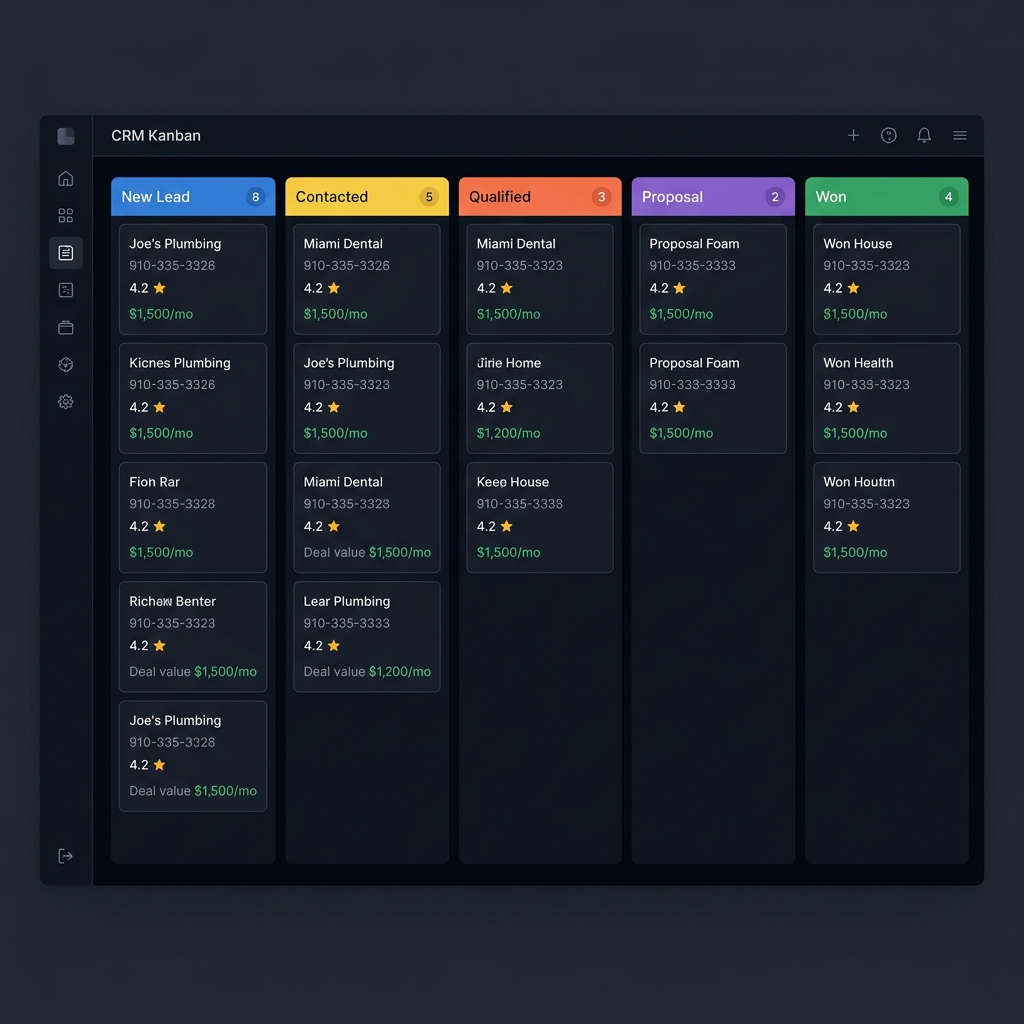
Pipeline Stages
| Stage | Color | Description |
|---|---|---|
| New Lead | 🔵 Blue | Freshly scraped or manually added. No contact made yet. |
| Contacted | 🟡 Yellow | Initial outreach email or call has been sent. |
| Qualified | 🟠 Orange | Lead has responded and shows interest. Discovery call scheduled. |
| Proposal Sent | 🟣 Purple | Pricing proposal or contract has been shared. |
| Won | 🟢 Green | Deal closed! Client signed and payment received. |
| Lost | 🔴 Red | Lead declined or went silent. Archive for future follow-up. |
Managing Leads
Click on any lead card to open its detail panel. From here you can:
- Add internal notes about conversations, preferences, or objections
- Set follow-up tasks with due dates and reminders
- Assign deal values (monthly or one-time) to track your revenue pipeline
- View email history — every outreach sent to this lead is logged automatically
- Move leads between stages by dragging cards on the Kanban board or using the stage dropdown
Adding Leads Manually
Not every lead comes from scraping. Click the "+ Add Lead" button at the top of any pipeline column to manually enter a lead's details (name, phone, email, website, and notes).
🛠️ SEO Audit & Tools
40+ specialized tools to audit, optimize, and scale local SEO for your clients.
Running a Full SEO Audit
Enter any website URL into the SEO Audit tool to generate a comprehensive report covering 50+ ranking factors. The audit checks technical SEO, on-page optimization, schema markup, mobile-friendliness, page speed, and more.
Audit reports can be exported as branded PDF documents for white-label client presentations. Customize the report with your agency logo and colors.
Key Tools Overview
Schema Architect
Generate valid JSON-LD structured data for LocalBusiness, FAQ, Reviews, Services, Events, and more. Paste into your client's website for rich search results.
AI Review Reply
Generate professional, keyword-rich responses to Google reviews. Choose tone (friendly, professional, apologetic) and customize to match the business voice.
Keyword Research
Discover high-value local keywords with search volume estimates. Integrates Google Suggest data for autocomplete-based keyword ideas.
Live Rank Tracker
Track keyword rankings in real-time across Google Search and Google Maps. Monitor position changes and set alerts for ranking drops.
GBP Checklist
A comprehensive 50+ point checklist to fully optimize any Google Business Profile. Each item includes an explanation and best practice guide.
SEO Proposal Generator
Auto-generate professional SEO proposals based on audit results. Include pricing, timeline, and deliverables. Export as PDF for client presentations.
🔌 Chrome Extension Guide
The MapScrapX Chrome Extension powers lead scraping and provides quick access to tools from any tab.
Installation Steps
Download the Extension
Download the mapscrapx-extension.zip file from your dashboard or the MapScrapX homepage. Save it to a convenient location on your computer.
Extract the ZIP File
Right-click the downloaded file and select "Extract All". This creates a folder containing the extension files.
Open Chrome Extensions Page
In Chrome, navigate to chrome://extensions/ or go to Menu → More Tools → Extensions. Enable "Developer Mode" using the toggle in the top-right corner.
Load Unpacked Extension
Click "Load unpacked" and select the extracted extension folder. The MapScrapX icon will appear in your browser toolbar.
Pin & Verify
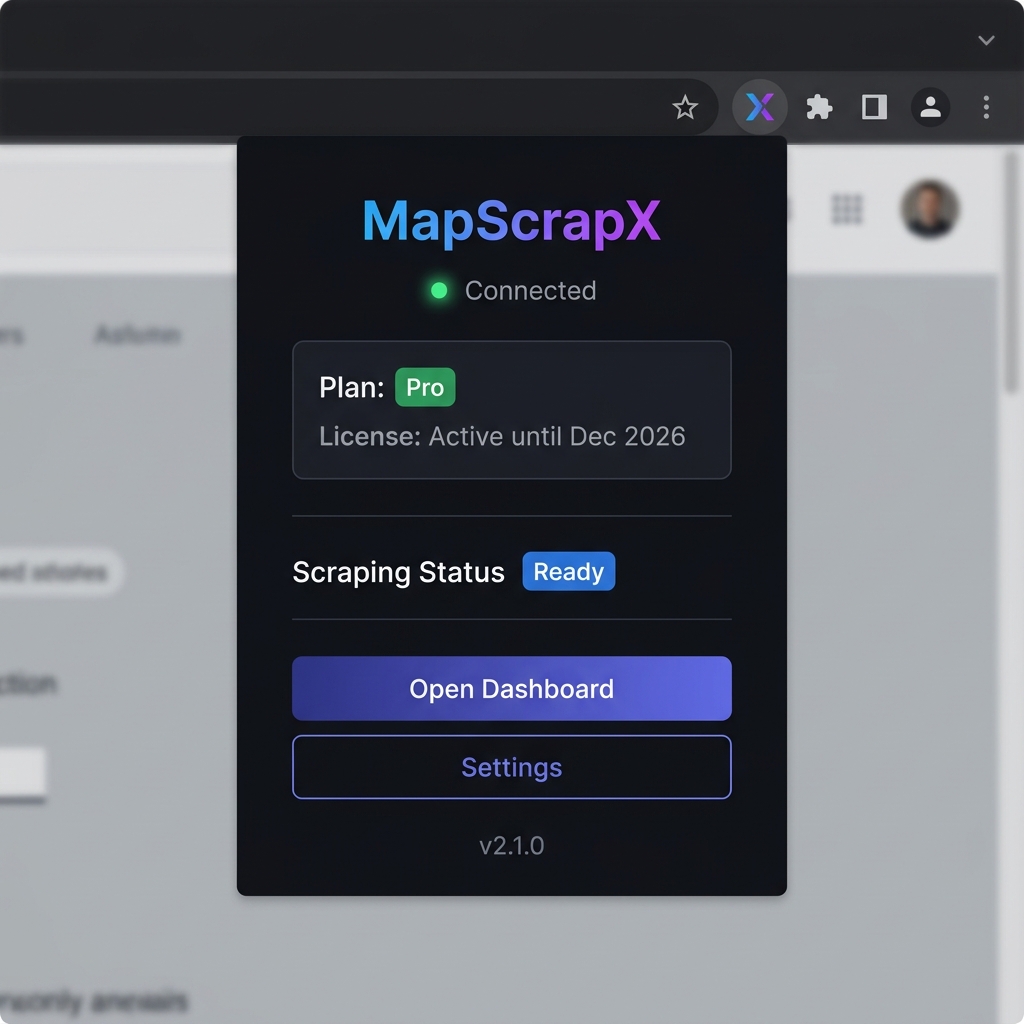
Click the puzzle icon (🧩) in Chrome's toolbar, then pin the MapScrapX extension. Click the MapScrapX icon to open the popup and verify your license status shows as "Active".
Using the Extension
Once installed, the extension works automatically with the Scraper Dashboard. When you start a scraping job from the dashboard, the extension handles the actual Google Maps navigation and data extraction in the background.
The extension popup shows:
- License Status — Your current plan (Free / Pro) and whether it's active
- Scraping Status — Shows "Ready", "Scraping...", or "Paused" during active jobs
- Quick Links — One-click access to the Dashboard, Scraper, and Settings
❓ FAQ / Troubleshooting
Quick answers to common questions and solutions for known issues.
This happens when Google detects automated browsing. Here's how to fix it:
1. Enable Safe Mode in the scraper settings — this adds randomized delays and human-like behavior.
2. Wait 15–30 minutes before retrying. Google's rate-limiting resets after a cooldown period.
3. Use a VPN to change your IP address before the next scraping session.
4. Reduce the scroll speed and max results to scrape more conservatively.
1. Go to chrome://extensions/ and make sure Developer Mode is still enabled.
2. Click the refresh (🔄) icon on the MapScrapX extension card to reload it.
3. Close and reopen Chrome completely.
4. If the issue persists, remove the extension and re-load it using "Load unpacked".
Check these common issues:
• Make sure you're using an App Password (not your regular login password) for Gmail.
• Verify the SMTP port — use 587 for TLS or 465 for SSL.
• Check that your SMTP host is correct (see the provider table in the SMTP Setup section).
• Ensure your email provider hasn't blocked "less secure app" access.
• Try the "Test Connection" button — it will show a specific error message if the connection fails.
1. Refresh the CRM page — sometimes leads take a few seconds to sync from the scraper.
2. Check your internet connection. MapScrapX uses Firebase/Firestore for real-time data sync.
3. Make sure the scraping job completed successfully (check the scraper status indicator).
4. If you exported leads as CSV instead of pushing to CRM, they won't appear in the pipeline automatically. Use the "Import" feature in the CRM.
Go to your dashboard and click the "Upgrade" button in the sidebar or navigate to Pricing. MapScrapX offers premium plans: Monthly ($19/mo), Quarterly ($49/period), and Lifetime ($99/one-time). Payment is processed securely through our payment gateway. Your access upgrades instantly after payment.
Yes! SEO Audit reports and proposals can be fully white-labeled. Go to the Settings panel and upload your agency logo, choose brand colors, and set your agency name. All exported PDFs will display your branding instead of MapScrapX.
Visit our Contact Page or email us directly at support@mapscrapx.com. We typically respond within 24 hours. For urgent issues, include your account email and a screenshot of the error in your message.
Still have questions?
Our team is here to help you get the most out of MapScrapX.